Welcome to 360Dash
360Dash is your private client dashboard for managing and communicating about your Sitethreesixty website. Everything related to your site — progress, messages, invoices, and services — lives here.
Getting Started
Your First Login
-
Open the dashboard
Visit:https://360dash.sitethreesixty.com -
Enter your email address
Use the same email you gave us during onboarding.
Click Continue. -
Check your email
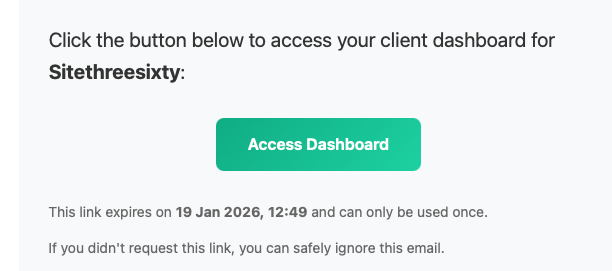
You'll receive a secure login email from Sitethreesixty. This contains a magic link.
A magic link lets you log in without a password. It's secure, single-use, and expires after 15 minutes.
Security Setup (Required)
Two-Factor Authentication (2FA)
On your first login, you'll be required to set up two-factor authentication. This adds an extra layer of protection to your account.
It means you'll need something you know (your email) and something you have (a temporary code from your phone) to log in.
Setting Up Microsoft Authenticator
We recommend Microsoft Authenticator, but any authenticator app that supports TOTP will work.
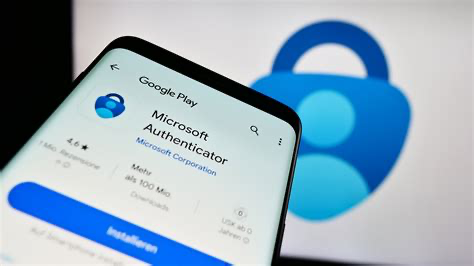
Step 1: Download the App
- iPhone: App Store → Search "Microsoft Authenticator"
- Android: Google Play Store → Search "Microsoft Authenticator"
Step 2: Link Your Account
- Log into 360Dash using your magic link
- You'll see a QR code on screen
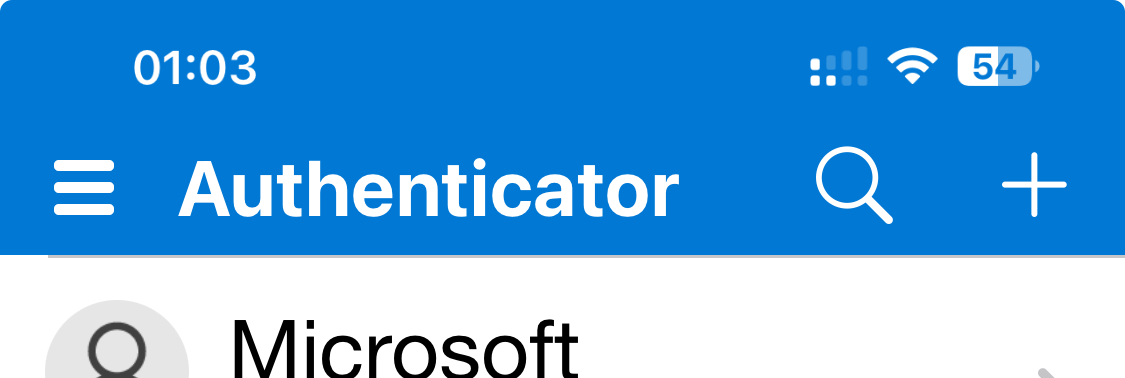
- Open Microsoft Authenticator on your phone
- Tap the + icon
- Select Other account
- Scan the QR code shown in 360Dash
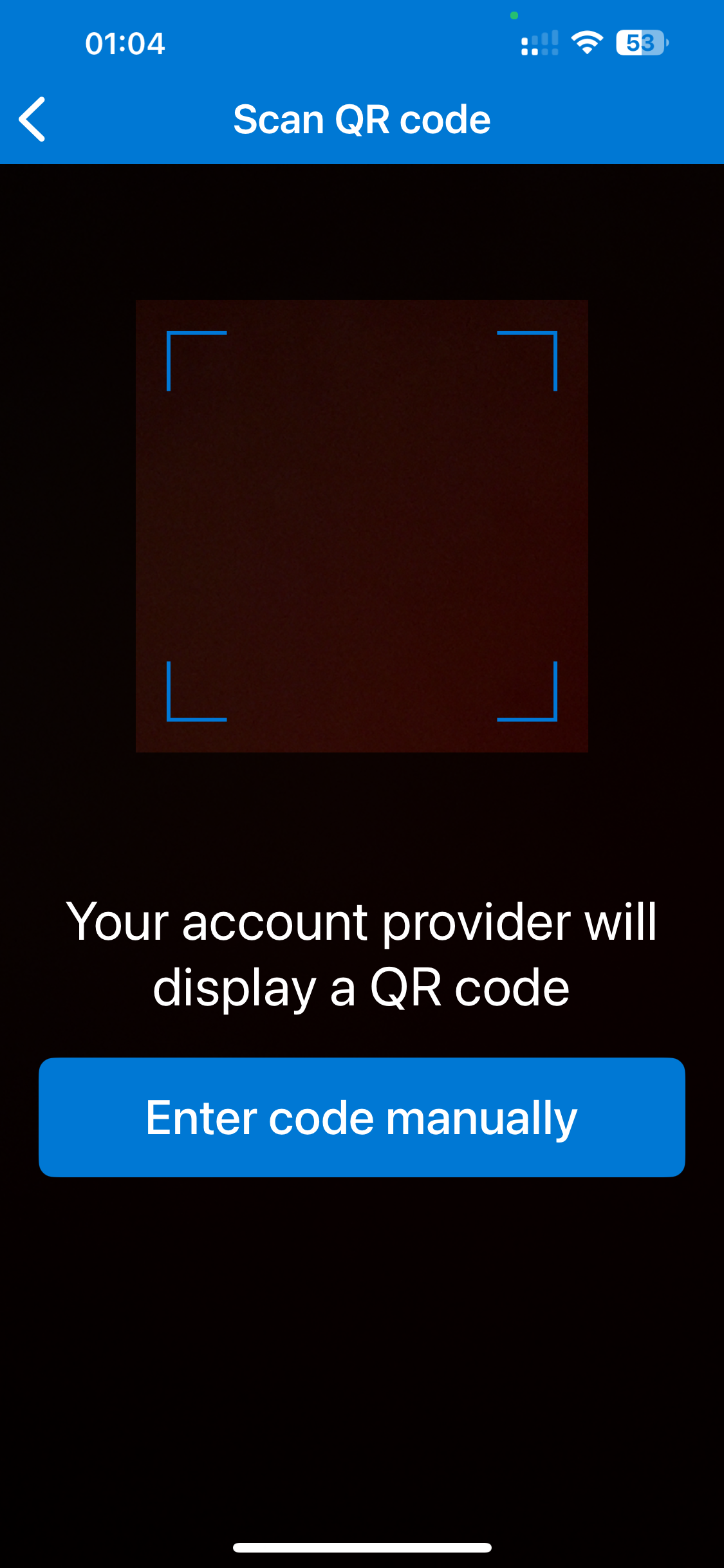
Can't Scan the QR Code?
This usually happens if you're setting up on the same device or your camera isn't available. You can enter the code manually instead.
- On the 360Dash screen, click "Can't scan? Enter code manually"
- Copy the secret key shown
- In Microsoft Authenticator, tap +
- Select Other account
- Tap Enter code manually
-
Enter:
- Account name: Sitethreesixty or your email
- Secret key: Paste the copied code
- Tap Finish
Tip: The secret key is not case-sensitive.
Logging In After Setup
- Enter your email address
- Click the magic link
- Enter the 6-digit code from your authenticator app
Your Dashboard
Project Status
This shows exactly where your website is in the process.
- Discovery – Gathering requirements
- Design – Visual design in progress
- Development – Site being built
- Review – Awaiting your feedback
- Live – Site is active and managed

Send a Message
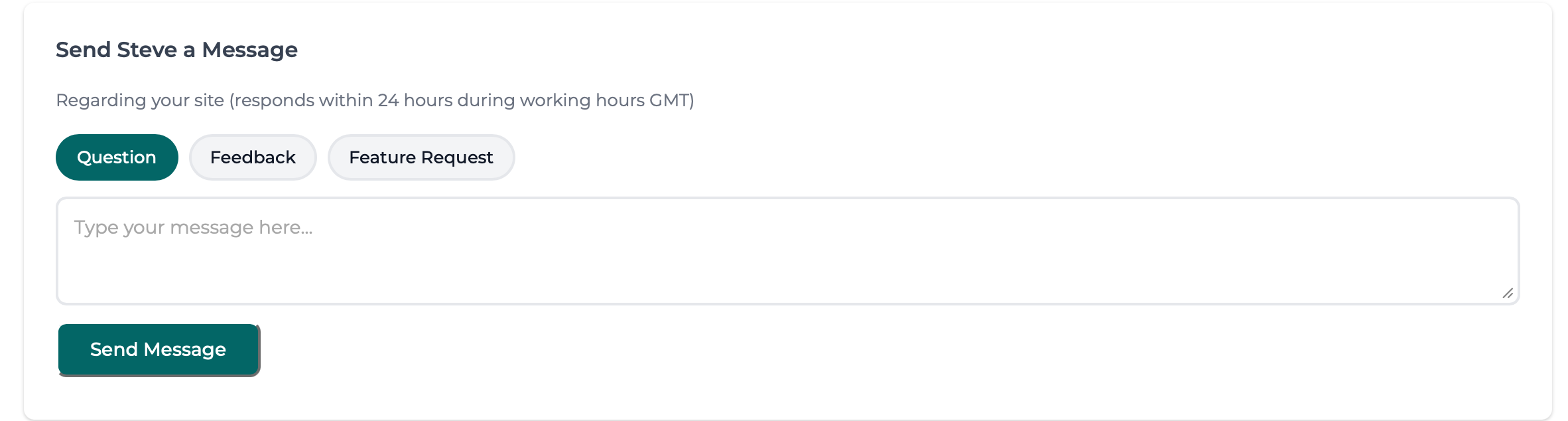
This is your direct communication line — no ticket systems, no bots.
- Find the Send a Message card
-
Select a message type:
- Question
- Feedback
- Feature Request
- Write your message
- Click Send
Modules & Services
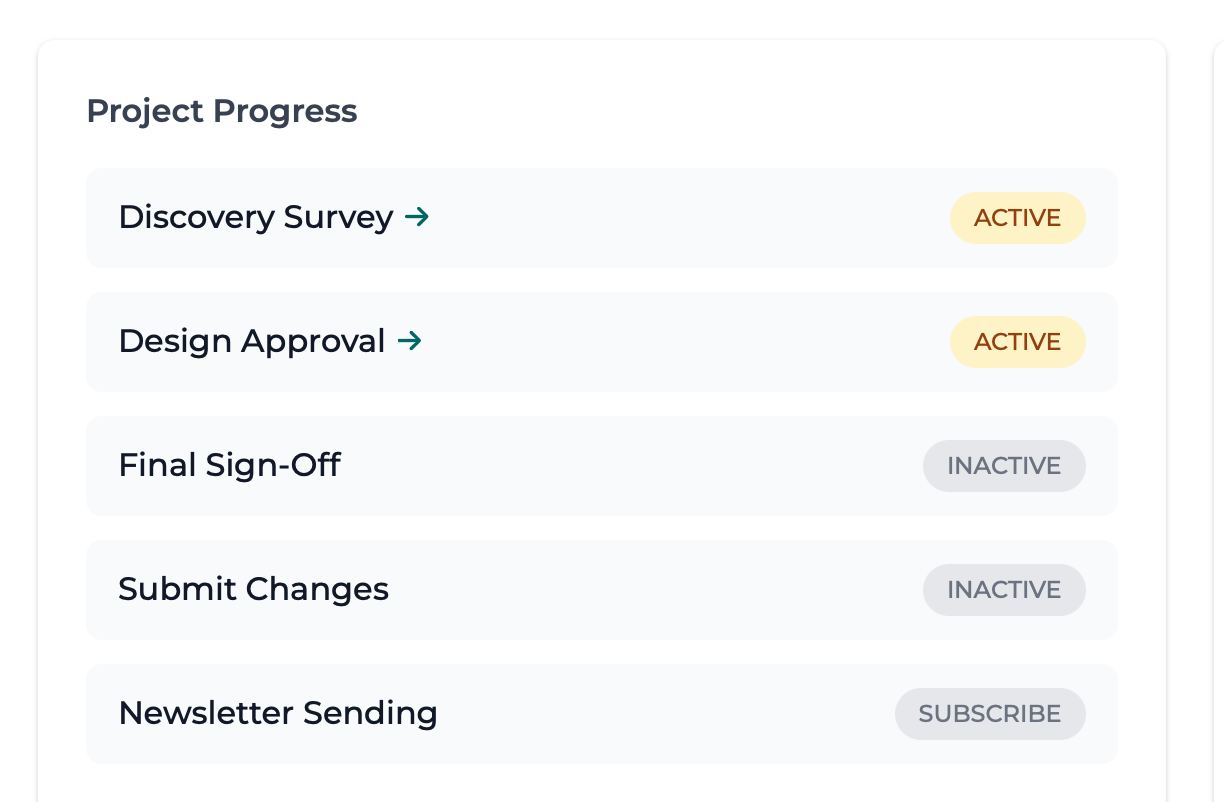
Your dashboard displays which services are active on your account.
- Active – Included and running
- Inactive – Not part of your plan
- Subscribe – Available as an add-on
Invoices & Payments – COMING SOON!
Invoices
- Open the Invoices module
- View past invoices
- Download PDFs for your records
[Screenshot Placeholder: invoices-list.png]
Payments
Payments are processed securely via Stripe.
- Open the Payments module
- View outstanding balances
- Pay by card
[Screenshot Placeholder: stripe-payment-screen.png]
Troubleshooting
Magic Link Not Arriving?
- Check spam or junk folders
- Add
noreply@sitethreesixty.comto contacts - Wait a few minutes and request a new link
Authenticator Code Not Working?
- Use the latest code (they change every 30 seconds)
- Ensure your phone's time is set automatically
- If you changed phones, contact support
Need Help?
If you need assistance or have a request:
- Use Send Steve a Message in 360Dash
- Email: admin@sitethreesixty.com
- Phone: 07424 213983
Basic Plan: 24–48 hours
Growth Plan: 12–24 hours (priority)
360Dash is designed to keep everything simple, clear, and personal — so you always know what's happening with your website.